

5 Common Claude Workflow Automation Pitfalls and How to Avoid Them

A workflow automation can fail long before anyone sees an error message. The failure often starts with a fuzzy process, a prompt that sounds clear but isn’t, or a missing check that lets one bad output travel through three different systems.
Claude can be a powerful part of an automation stack. It can summarize messy text, classify requests, draft responses, extract fields, and help teams reduce repetitive work. But it is not a magic layer you drop onto an unclear process and trust forever.
The best automations come from thoughtful planning, careful testing, and a clear view of what should happen when things go wrong. For teams using Claude, business automation works best when the workflow is treated like an ongoing system, not a one-time setup.
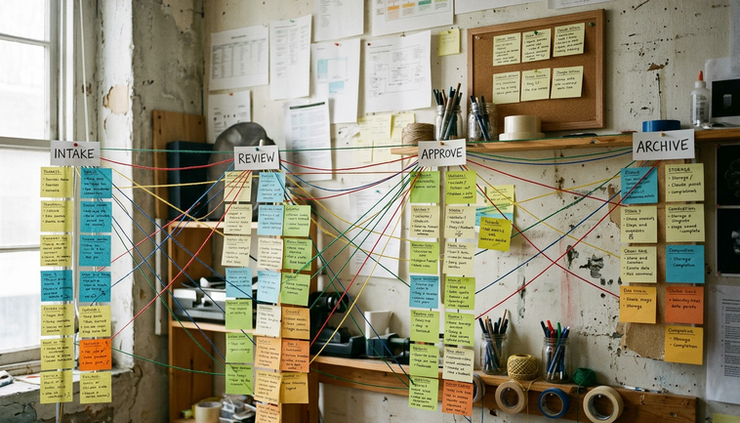
1. Automating a workflow before the workflow is clear
The most common mistake is also the easiest to overlook. A team sees a repetitive task and decides to automate it right away. The task looks simple from the outside, but the real process has exceptions, judgment calls, missing information, and quiet workarounds that live in people’s heads.
If the workflow is unclear, Claude may do exactly what was requested and still produce poor results.
Take customer support triage. A team might ask Claude to read incoming messages and route each one to billing, technical support, or account management. That sounds straightforward until the team reviews actual tickets. Some billing issues include technical errors. Some technical issues are really account access problems. Some customers mention five things in one message.
If no one defines the routing rules, the automation will guess. Sometimes the guess will be reasonable. Sometimes it will send urgent messages to the wrong queue, delay a response, or create duplicate work.
A better approach starts with process mapping.
Before building the automation, answer a few plain questions:
What starts the workflow?
What should Claude receive as input?
What should Claude produce as output?
Who uses the output next?
What decisions should Claude make?
What decisions should a person still make?
What exceptions should stop the workflow?
This planning does not need to be complex. A simple flowchart, checklist, or shared document can expose weak spots fast.
Practical tip: Run through 20 to 50 real examples before writing the final prompt. Sort them manually. Look for patterns, exceptions, and unclear cases. If people disagree about the right outcome, Claude will not solve that disagreement by itself.
The rule is simple: don’t automate the imagined process. Automate the real one.
2. Giving Claude vague instructions and expecting precise results
Claude responds to the instructions, context, and examples it receives. A vague prompt leaves too much room for interpretation, especially in a workflow where the output feeds another tool or triggers the next step.
A weak automation prompt might say:
Summarize this customer message and decide if it is urgent.
That sounds useful, but it does not define “urgent.” It does not say how long the summary should be. It does not specify the output format. It does not explain what to do when the message is unclear.
Now imagine that summary moves into a ticketing system. One output says “high priority.” Another says “urgent.” Another says “needs attention soon.” A person can understand those phrases, but software may treat them differently. The automation becomes fragile because the output is inconsistent.
A stronger prompt gives Claude a clearer job:
Use three priority labels only: `low`, `normal`, or `urgent`
Mark a ticket as `urgent` only if it includes loss of access, failed payment affecting service, security concerns, or a deadline within 24 hours
Return JSON with `summary`, `priority`, `reason`, and `needs_human_review`
If the message is unclear, set `needs_human_review` to `true`
This kind of structure reduces surprises. It also makes testing easier because the expected output is specific.

Real-world example: A sales operations team uses Claude to read inbound demo requests and create short lead notes. The first version asks for “a helpful summary.” The results vary a lot. Some notes are one sentence. Others are long paragraphs. Some include the prospect’s industry, while others skip it.
The team rewrites the prompt to request five fields only:
Company type
Problem described
Product interest
Urgency signal
Suggested follow-up question
The output becomes much easier to use because everyone knows what to expect.
Practical tip: Treat prompts like requirements, not casual requests. Include role, task, rules, examples, output format, and refusal or escalation conditions. Then save the prompt version so changes can be tracked later.
3. Skipping guardrails for risk, privacy, and human review
Not every workflow should run from start to finish without a person involved. Claude can support decisions, but some actions carry enough risk that they need guardrails.
This becomes especially important when an automation can:
Send messages to customers
Update records in a system of record
Approve or reject requests
Handle sensitive data
Trigger refunds, account changes, or access changes
A common pitfall is treating all outputs as equal. A low-risk summary and a high-risk account decision should not have the same review path.
Suppose a finance team uses Claude to review vendor emails and draft payment-related responses. It may be fine for Claude to summarize an invoice question. It is much riskier for an automation to approve a payment change based only on an email, especially if bank details are involved.
The safer design separates tasks by risk.
Claude can classify the request, extract details, and flag suspicious signs. A person should review anything involving payment changes, sensitive customer information, legal language, or unusual account activity.
Good guardrails include:
A confidence or review flag
Clear escalation rules
Allow lists and block lists for specific actions
Output formats that prevent free-form surprises
Human approval before external messages or system changes
Logs that show what Claude received and returned
Practical tip: Define “automation stops here” moments. If the input is incomplete, sensitive, contradictory, or outside the defined scope, the workflow should route to a person instead of pushing forward.
Guardrails are not there to slow the system down. They keep the system useful by preventing one uncertain output from becoming a bigger problem.
4. Ignoring edge cases and messy inputs
Real workflows rarely receive clean, perfect inputs. People send screenshots instead of text. Customers write in fragments. Internal notes contain abbreviations. Forms are missing required fields. Emails include long threads with old information mixed into new information.
If testing only uses clean examples, the automation will look better than it really is.
Consider an HR team using Claude to summarize employee feedback from an internal form. The test examples are tidy, polite, and complete. After launch, real submissions include sarcasm, copied email threads, blank fields, and comments about several topics at once. The summaries become uneven because the workflow was trained around ideal inputs, not real ones.
Edge cases are not rare annoyances. They are part of production work.
Common edge cases include:
Empty or very short inputs
Extremely long inputs
Conflicting information
Multiple requests in one message
Missing names, dates, or IDs
Informal language or typos
Sensitive information that should be masked
Inputs in an unexpected format
Requests outside the automation’s scope

A practical way to handle this is to build a test set with both normal and difficult examples. Include the cases that make people pause. Include inputs that should fail safely. Include examples where the correct answer is “send to human review.”
Then decide how the workflow should respond in each case.
For example:
Input problem | Safer automation behavior |
Missing customer ID | Ask for the missing ID or route to review |
Message includes two unrelated requests | Split into separate items or flag for review |
Sensitive data appears in the text | Mask the data before storing or sharing |
Request is outside the defined scope | Return a clear out-of-scope label |
Instructions conflict with company policy | Follow the policy and flag the conflict |
Practical tip: Create a “messy input library.” Add new examples whenever the automation struggles. Use that library when you revise prompts, rules, and review steps.
A workflow that handles messy inputs gracefully will feel far more reliable than one that only shines in a demo.
5. Launching without testing, monitoring, and version control
The final pitfall is treating launch as the finish line. It is not. Launch is when real-world feedback begins.
Claude workflow automations need testing before launch and monitoring after launch. Prompts change. Business rules change. Connected tools change. Teams discover new edge cases. A workflow that worked well last month can drift if no one watches it.
A rushed launch often looks like this:
A prompt works on a few examples
The workflow is connected to live tools
No one defines success metrics
No one reviews failed or uncertain outputs
Prompt changes happen informally
The team cannot tell which version caused a problem
That setup makes troubleshooting painful.
A better launch plan includes a test phase, a limited rollout, and a review rhythm.
Start with offline testing. Run the automation against past examples and compare outputs to known good outcomes. Then use a small live pilot. Keep a person in the loop. Track where Claude performs well and where the workflow needs clearer rules.
Useful things to monitor include:
Percentage of items sent to human review
Common reasons for failure or escalation
Output format errors
Duplicate or missing records
User corrections after Claude’s output
Time saved compared with the manual process
Complaints or confusion caused by automated messages
Version control matters too. Save each major prompt. Note what changed and why. If a new version performs worse, you need a way to roll back.

Practical tip: Build a simple release checklist for every automation change. Include sample tests, edge cases, approval steps, logging checks, and a rollback plan. Even a short checklist prevents many avoidable mistakes.
Testing and monitoring do not make automation slower. They make it safer to use at scale.

The strongest Claude automations usually have one thing in common: they were designed with care before they were connected to live work.
Start with the process. Make instructions specific. Add guardrails where risk is higher. Test with messy examples. Keep watching after launch.
Claude can take on a lot of repetitive work, but the quality of the automation depends on the quality of the system around it. Plan the workflow as if it will face real people, real exceptions, and real consequences, because it will.


Comments